My Obsidian Setup
Disclaimer: The content of this blog post is my own approach on Obsidian which is constantly evolving as I spend more time on Obsidian. While I believe some pieces here can be applied to any Obsidian vault, I strongly suggest exploring it yourself.
A Brief Overview of Obsidian
Before explaining my setup, what is Obsidian? Obsidian is a knowledge management/note-taking akin to Notion. The idea is that every file within the vault (aside from attachments) is in Markdown. The great thing about Obsidian is the amount of customization. You can essentially change everything about your experience, whether it is the appearance (through Themes or CSS Snippets) or the functionality (with Plugins). I started using Obsidian in Summer 2024, and it has been very helpful for my daily work. I use it to track and manage tasks, archive notes on papers, take meeting notes, write reviews, and more.
My Vault
A skeleton of my vault is publicly available at this GitHub repository. It includes a selected subset of the directory tree, templates, and the plugins, themes and CSS snippets I use.
Structure
I organize my vault around three main directories. The main rationale is to keep things related together and separate work/life/maintenance:
RESEARCHCODE(also used for artifact reviews)
LOGISTICS
MEETING
READING(papers or reviews)
WRITING(papers, reports, guides)
PERSONALADMIN
BLOG POSTS(you’re reading one!)
DIARY(archives random thoughts for later expansion inTHOUGHTS)
MISC(notes vital for vault functionality, templates, attachments)ATTACHMENTS(images, embeds; change the “Attachment folder path” to this folder)
BASES(Obsidian 1.9.0+ plugin for database)
{DAILY,WEEKLY} NOTES
EXCALIDRAW(plugin-related files)
MOC(Map of Content; may be outdated due to Bases)
PEOPLE(one note per frequent contact, useful for meetings)
TEMPLATES
Workflow
Tags
Obsidian allows you to tag your notes. This allows a better organization and certain operations like filtering. However, it can become overwhelming when you don’t keep track of tags. To this end, I developed my own tags taxonomy (under a note brilliantly called TAGSONOMY). The core idea is to separate the tags into multiple sets similar to the vault structure (WORK/RESEARCH, PERSONAL, MISC).
Homepage
My homepage looks like this:
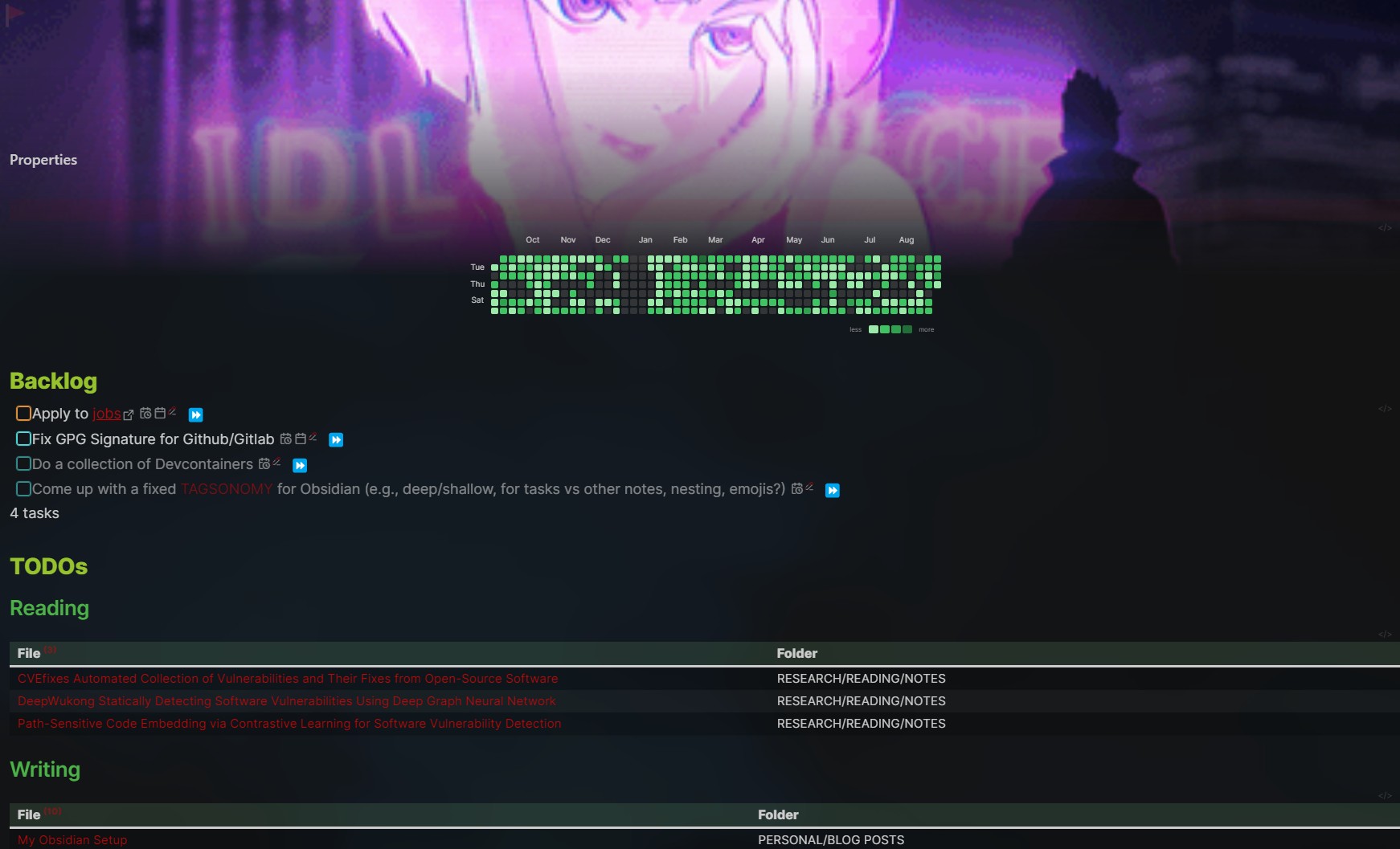
Aside from the aesthetic (banner and graph), it is made of three elements:
- Backlog: All the tasks that I lost track of or that I need to reschedule
- TODOs/Reading: Papers/Notes that I have to read
- TODOs/Writing: Notes that I have to write
Some people prefer having the homepage serving as a hub to navigate other notes, but I found it redundant for my use case (I don’t spend that much time there).
Daily/Weekly Notes
Daily Note
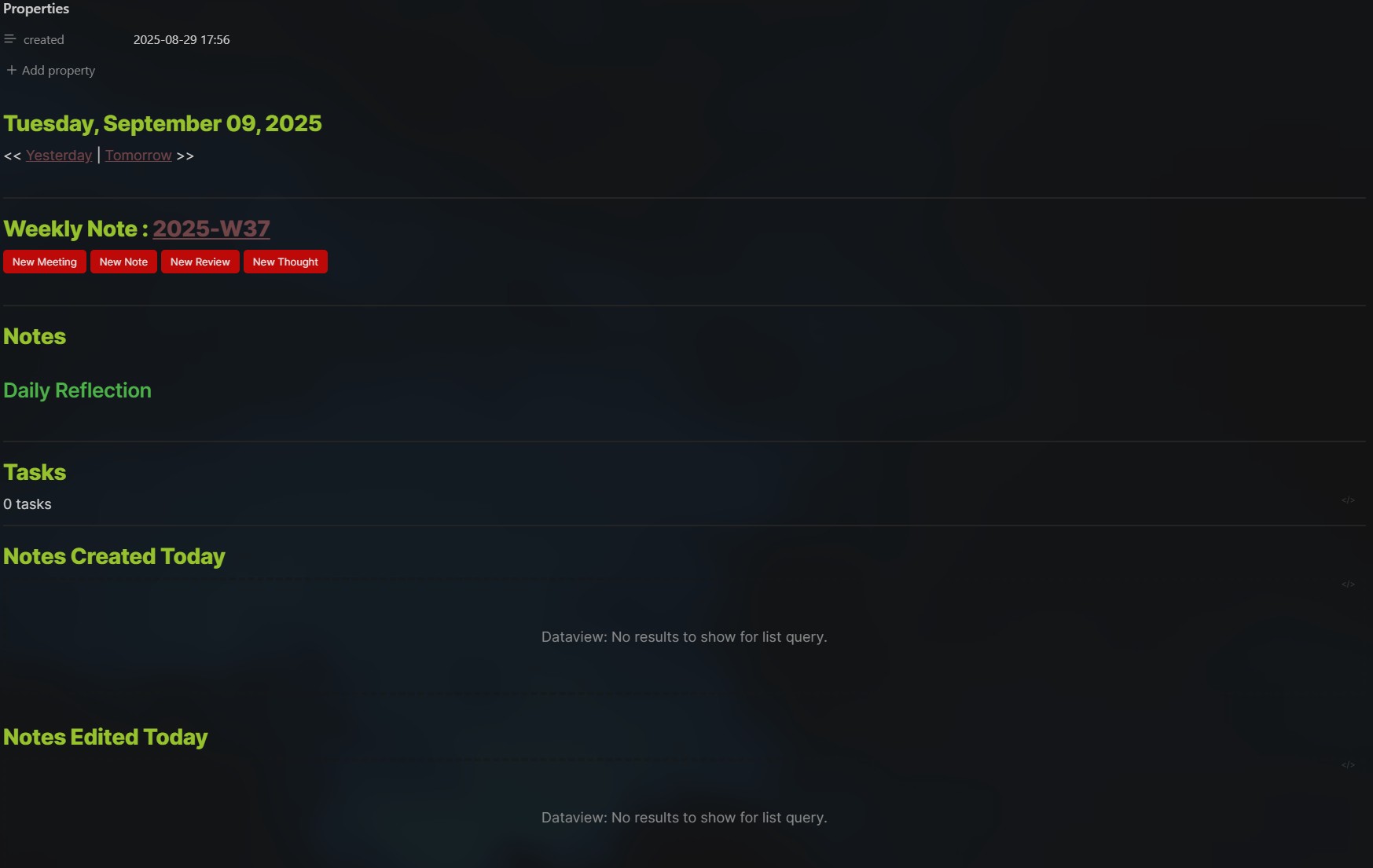
My daily notes are pretty straightforward (quick access to note creation, tasks, scratchpad). I also show notes created/edited during this day. Here’s an example:
Weekly Note
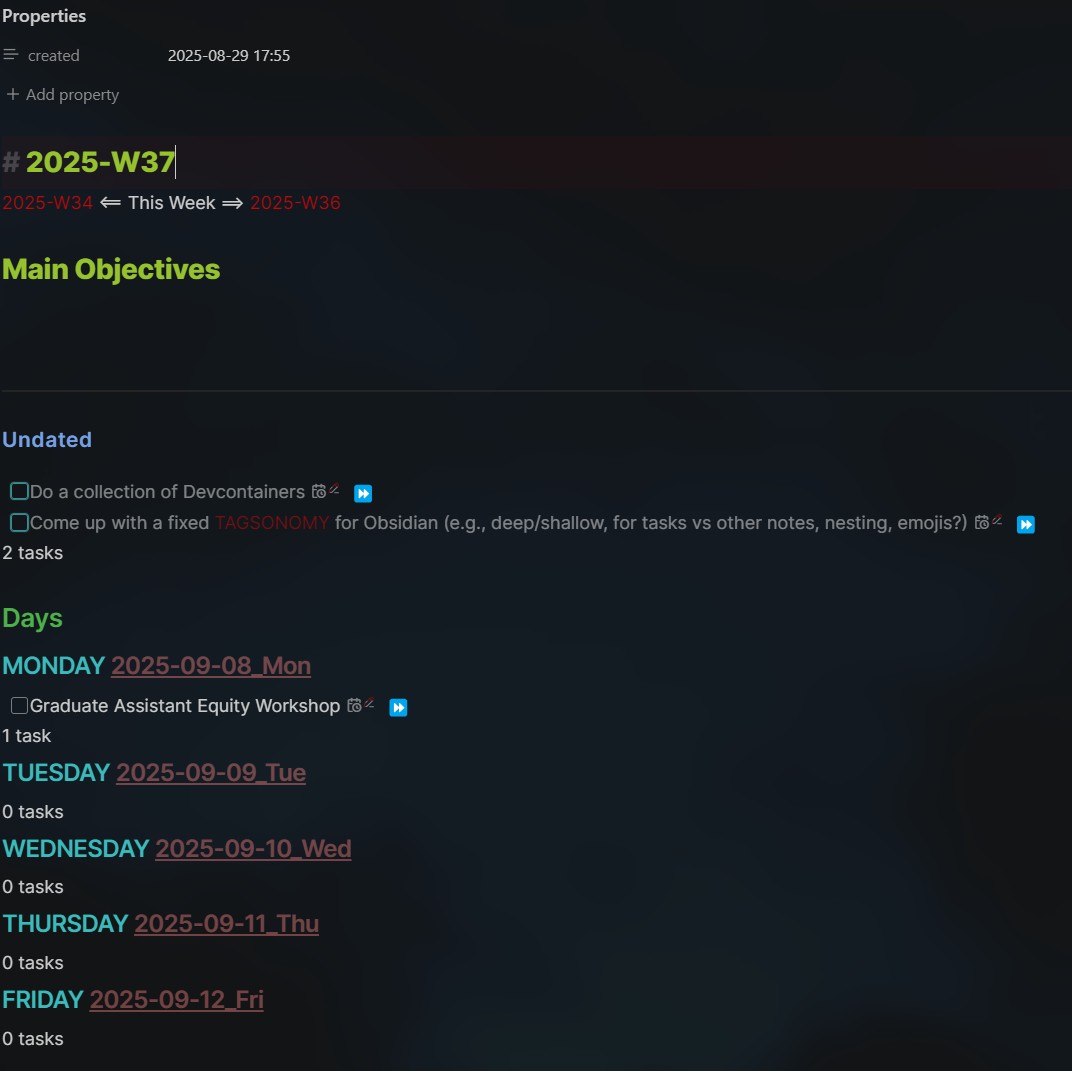
Weekly notes are where I prepare for the upcoming week. Under the “Main Objectives” section, I fill in all the tasks for the week. The view below per day shows where the tasks are scheduled in the week.
Task Management
The Tasks plugin is among my most used plugins. Every Sunday, I create a new weekly note (if not already created) and list all tasks for the week, grouped by project or type.
For each task, I do the following:
- Assign a self-contained name for clarity (e.g., “Write introduction for Paper X”)
- Assign a
due date(if applicable)
- Assign a tentative
schedule date
- Assign a
priority
- Assign
TASKStags such as Depth and Type
Tip: Making the task name self-contained avoids confusion when juggling multiple projects.
You’ll find more details on the tasks plugin here.
My Settings
Appearance
Themes
My vault comes with a few themes I like, but I mostly converged on the Blue Topaz theme as it comes with many settings.
CSS Snippets
I use the following CSS snippets:
- Colored Sidebar Items
- Hoverable Dropdowns
- Mathematical Callouts
- Minimal Tasks
- Checkboxes
You can find a collection of CSS snippets here for example.
Plugins
To make my experience more visually appealing, I use a few plugins which I briefly detail here:
- Iconize: This plugin shows an icon on folders or notes, generally helpful to have a glance at the purpose of the object.
- Pixel Banner: This plugin allows to add a banner to any notes (including GIFs). I think it can help visually
- Style Settings: This plugin unlocks other options for the Theme. It really depends on the theme, for instance, there is a lot of different for Blue Topaz
Management
Plugins
I use a fairly wide array of plugins to manage my vault:
- Tasks: This plugin, as its name suggests, adds tasks in your vault (see my workflow above).
- Dataview: Generates views by querying your notes like a database. Even if Obsidian released a core plugin named Bases that serves a similar purpose, this plugin interacts very well with Tasks which is why I keep it.
- Templater: Allow the creation of templates for notes. Very useful for Periodic Notes and any set of notes that share the same layout (e.g., reviews, paper reading notes, etc.)
- Periodic Notes: Allows to create a standardized note per period (e.g., daily, weekly, monthly, yearly).
- Calendar: Adds a calendar on the interface that interacts with the Periodic Notes plugin.
- Homepage: Adds a homepage, useful to have a hub where information is centralized.
Hotkeys
While it provides a pretty good UI, some hotkeys can be pretty handy . Below is a list of hotkeys that I use fairly often, excluding the usual text editing ones.
Ctrl + O: Quick select a note
Alt + H: Navigate to Homepage
Alt + T: Edit selected task
Alt + ← / →: Navigate Daily Notes
Alt + D / W: Daily/Weekly note
Alt + 1…6: Set markdown heading
Ctrl + Shift + F: Search all files
Ctrl (+ Shift) + E: Switch views
Backing Up/Syncing
There are many options to back up and sync your vault. I currently use two of them:
- Obsidian Sync: This is a paid subscription (currently $4/month) that automatically backs up your Obsidian vault between devices. It is very convenient and removes the hassle of manually syncing.
- Manual Git repo: I also back up my vault to a private GitHub repository from time to time.
Note that syncing and backing up are two different things, as explained in this guide.
Bonus: I back up a public subset of my vault automatically to a GitHub repository with a bash script.
There exists other options you might want to take a look at:
- Git plugin: Designed to automate the git process (like pulling on startup)
- Local Backup plugin
Mass Refactoring
Sometimes, I realize that a template I’ve been using could be improved in some way and while fixing it would improve newer notes created from it, it would not fix the notes already created. For example, I used to hard code the Meta Bind button in my Daily Note template, but when I found that I could just implement them once and reference them in the template, I changed all my previous Daily Notes (about 200 at the time). Instead of doing that, I use VS Code which is pretty handy when it comes to mass refactoring (search and replace all files with Ctrl + Shift + F).